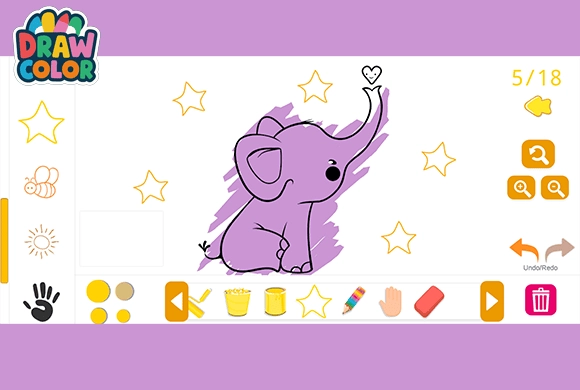
Draw Color: choose the tool for the area you want to paint
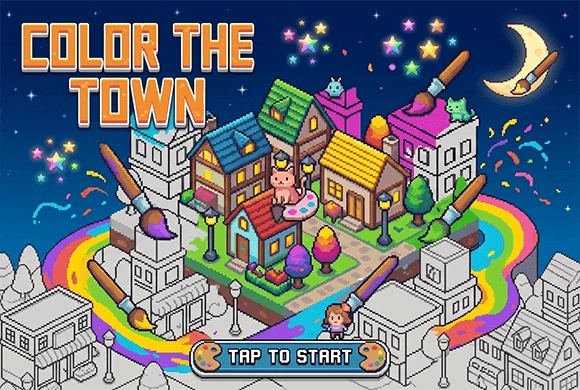
Draw Color is a coloring workspace with line-art pictures, a palette and several drawing tools. Select a design, choose how you want to apply color and work from broad areas toward the smaller details. The result is your own color arrangement rather than a race through the canvas.
The useful distinction is between covering space and drawing a mark. A fill tool helps with a large enclosed area, while a pencil or marker gives you more control over small details.
Controls
Use the mouse or touchscreen to select a picture, tool and color. Click, tap or draw on the canvas to apply the selected tool. Use zoom for small details and Undo to reverse a change.
Establish the large color areas first
Browse the pictures with the arrows, then select a palette you want to try. Use the bucket or roller for broad areas and reserve the pencil or marker for places where an individual stroke matters.
Compare neighboring colors as you work. Filling a large area first makes it easier to see whether a small detail needs contrast or a quieter shade. You can change tools during the same picture rather than finishing everything with the first one selected.
Zoom before working on a small detail
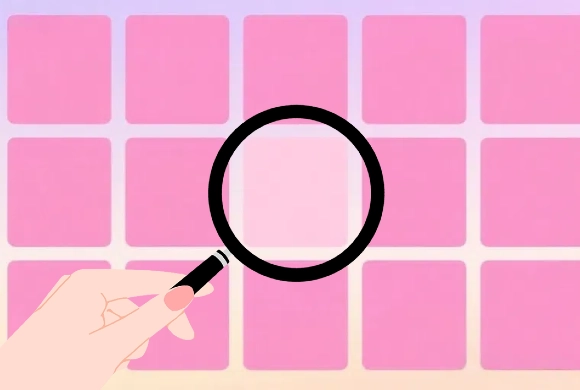
The magnifying controls enlarge the picture so a small region occupies more of the screen. Use this when closely spaced outlines make a normal-sized stroke difficult to place.
If a mark lands in the wrong place, Undo lets you return to the earlier state. Correct the individual change before continuing; several later marks can make it harder to remember which action created the problem.
Try a second color arrangement
You can repaint areas with a new color or clear the canvas for another attempt. Before clearing, compare the current balance of large areas and details. Keeping what worked in mind makes a new palette an experiment rather than a complete restart without direction.
This guide is based on the supplied game instructions.
Questions about Draw Color
Do I have to keep the same drawing tool?
No. Switch between the available tools as the area changes. A broad fill and a fine detail benefit from different kinds of control.
How do I fix an unwanted color?
Use Undo to reverse the change or apply a different color to the area. Zoom in first if the region is small.
Something not working?
Tell us the game name, your device and what happened at mia@minigame.xin.